Start with a selection you can maintain
Choose products with clear pack sizes, known prices and dependable replenishment. Drinks, packaged foods and household items can start in separate categories. If you sell by weight or at variable prices, explain how quantity and the final total will be confirmed before accepting an order; do not advertise an automatic calculation you have not configured.
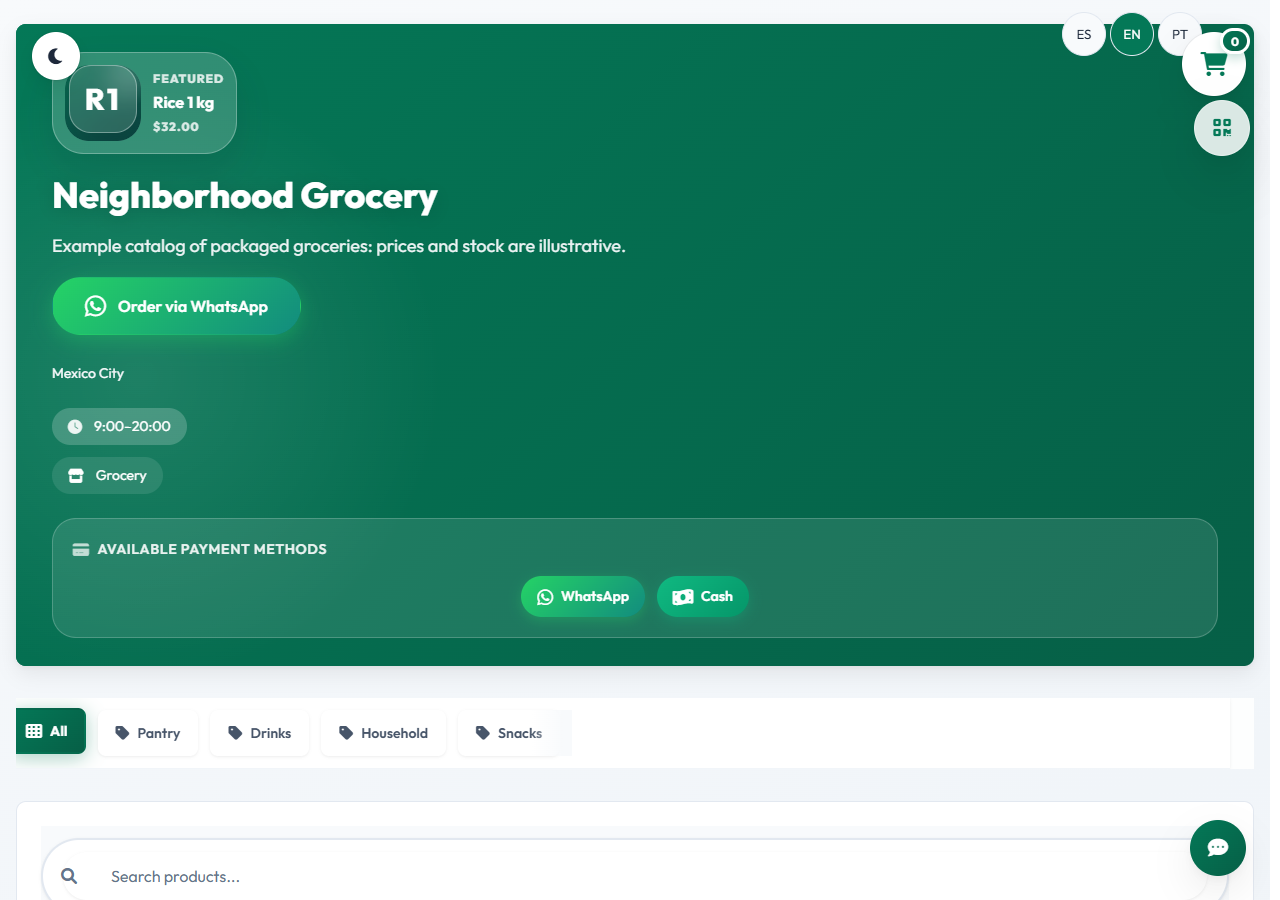
Open the grocery template
Use MiniTiendAI’s grocery template option to get an editable starting point. You can also describe your business to StoreCraft AI. Initial names, pictures, prices and stock are examples: replace them with your actual information. Keep the store as a draft while preparing it. The demonstration lets you explore the catalog without creating real customer orders.
Organize categories and check listings
Confirm the selected store in the dashboard, then open Categories. Separate drinks, pantry and household items if that matches your range. In Products, verify names, pack sizes, prices, availability and pictures. Include units such as a one-litre bottle or six-pack without promising formats you cannot supply. Avoid pictures that show more quantity than the displayed price includes.
Import a spreadsheet when you already have a catalog
Open Import and check the CSV format shown by the tool. First try a few rows and review the preview; fix columns or amounts before saving. Do not mix prices with ambiguous symbols or assume importing creates a live connection to your point of sale. Afterwards, review categories, pictures and stock in the public storefront.
Explain delivery, pickup and substitutions
Set your business WhatsApp number and describe service areas, hours, delivery fees and pickup options. Ask the customer before replacing an unavailable item. If you operate from home, publish appropriate service information rather than an unnecessary private address. A WhatsApp message starts confirmation; it does not prove payment or acceptance of the order.
Test a complete order on a phone
Publish from Publish and open the link on another phone while signed out. Find an item, add two products, change a quantity and review the cart. Open WhatsApp and check the number, items, quantities and subtotal. Confirm how you will communicate delivery charges and the final total. Save and share your link or QR code after completing this check.
Keep a routine for stock and follow-up
Review Orders in the dashboard and record their actual status. Reconcile stock after sales at your physical store or through other channels: those external movements do not synchronize by themselves. Update prices when supplier costs change and pause items you cannot fulfil. The worksheet below estimates what remains per order, without including every business expense.